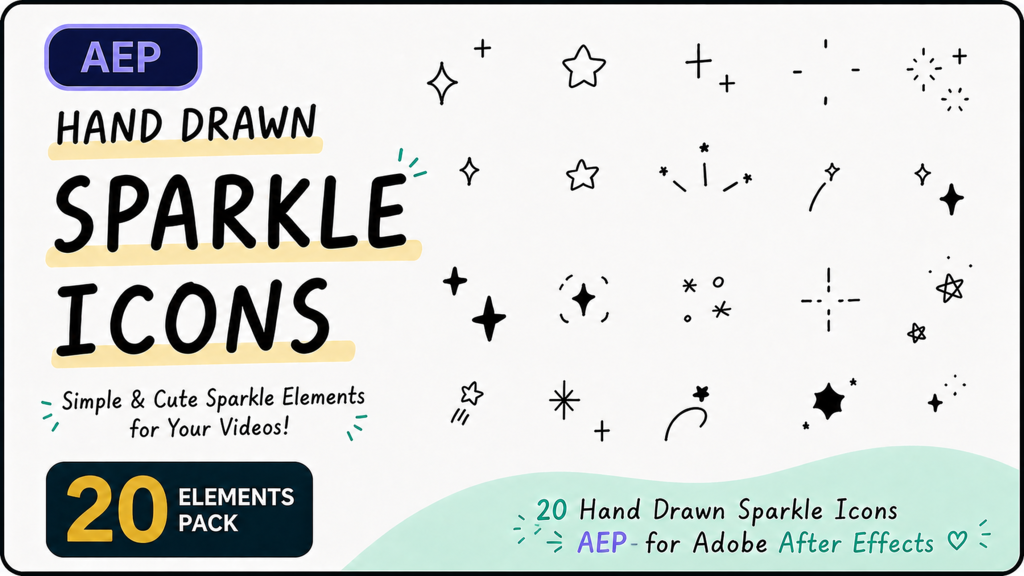
Hello! Thanks for purchasing this template!
━━━━━━━━━━━━━━━━━━━━━━━━━━━━━━━━
20 Sparkle Icons – Motion Graphics Pack (AEP)
━━━━━━━━━━━━━━━━━━━━━━━━━━━━━━━━
[ REQUIREMENTS ]
- Adobe After Effects 2026 (created in 2026)
* Compatibility with older versions is not guaranteed.
We recommend using the latest version of After Effects.
- Adobe Illustrator (only if you want to edit the shape)
[ FILE INFO ]
- Resolution : 1920 x 1080
- Frame Rate : 24 fps
- Duration : 16 frames (~0.67 sec) per animation
- Compositions: 20 (sparkle_01 – sparkle_20)
━━━━━━━━━━━━━━━━━━━━━━━━━━━━━━━━
HOW TO USE
━━━━━━━━━━━━━━━━━━━━━━━━━━━━━━━━
1. Open the .aep file in After Effects.
2. In the Project panel, double-click the composition
you want to use (e.g. "sparkle_01").
3. Select all layers in the Timeline and copy them.
4. Open your own composition and paste.
5. Render your composition. That's it!
━━━━━━━━━━━━━━━━━━━━━━━━━━━━━━━━
HOW TO CHANGE COLOR
━━━━━━━━━━━━━━━━━━━━━━━━━━━━━━━━
1. Select the layer you want to recolor in the Timeline.
2. Go to Effect > Generate > Fill
( Menu: Effect Controls panel will open )
3. Click the color swatch next to "Color" in the
Effect Controls panel and choose your desired color.
Note: You can apply different Fill effects to
different layers for multicolor looks.
━━━━━━━━━━━━━━━━━━━━━━━━━━━━━━━━
HOW TO EDIT THE SHAPE
━━━━━━━━━━━━━━━━━━━━━━━━━━━━━━━━
Each animation uses an Adobe Illustrator (.ai) file
as its footage source.
To change the shape:
1. Locate the .ai file in the Footage folder
inside the Project panel.
2. Double-click the .ai file to open it
in Adobe Illustrator.
3. Edit the artwork and save.
4. Back in After Effects, right-click the .ai file
in the Project panel and select "Reload Footage."
5. The updated shape will appear in all compositions
that use that footage.
━━━━━━━━━━━━━━━━━━━━━━━━━━━━━━━━
Hope you enjoy using these sparkle animations!
If you have any questions, feel free to reach out.
Best regards :)
━━━━━━━━━━━━━━━━━━━━━━━━━━━━━━━━
- Code
- 54600974
- Type
- After Effects template
- Required software
- After Effects et supérieur
- Taille de Fichier
- 4.6 MB
- Licence
- Libre de Droits