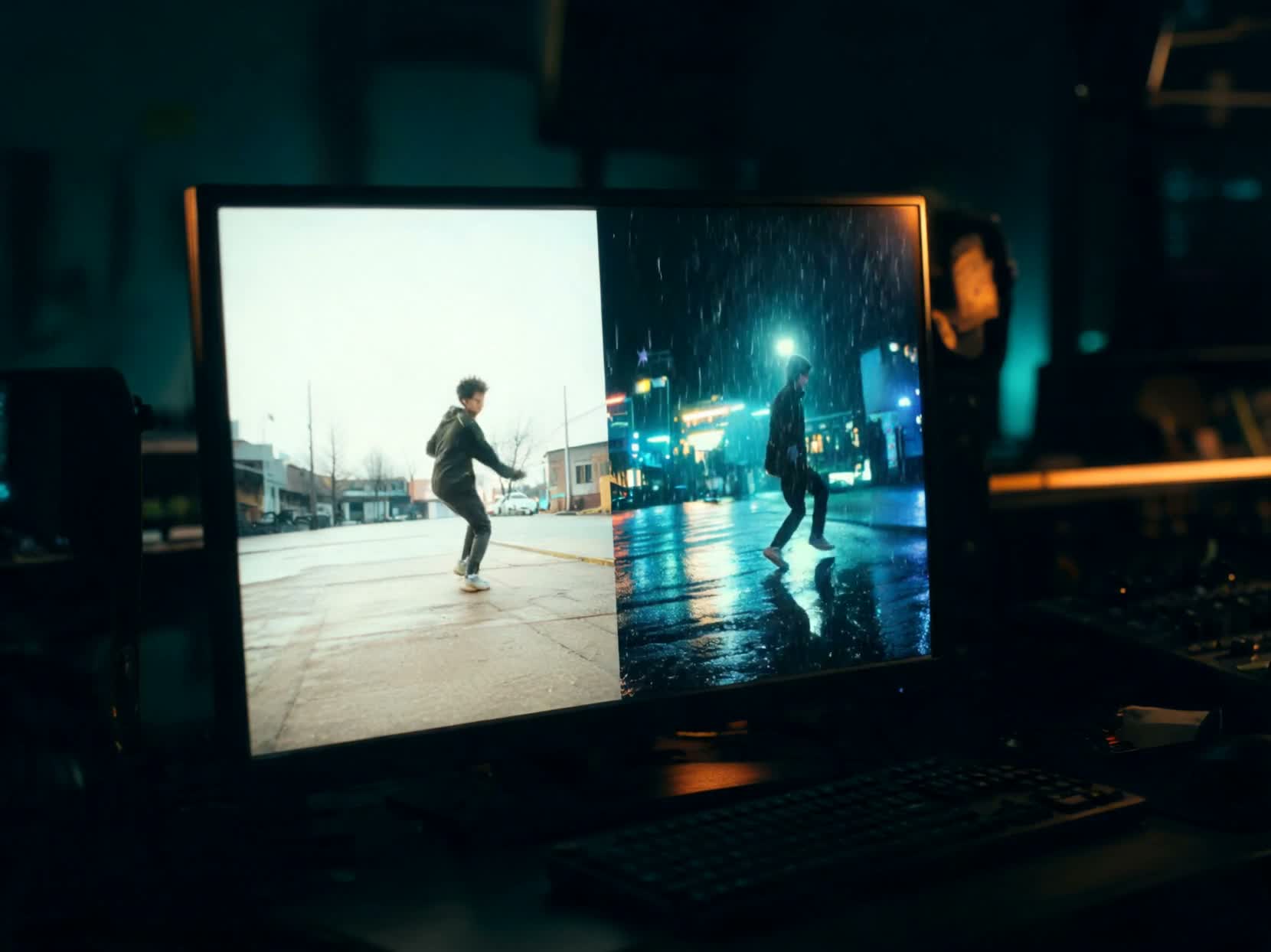
Every editor knows the moment: the take is right, but the world around it is wrong. The performance landed and the timing works in the cut — then the brief changes. A different location, a moodier grade, a night exterior instead of an overcast afternoon. Traditionally that means a reshoot, or days of compositing. PixVerse V6, now available in [MotionElements Studio AI], offers a third route: bring the clip you already have, describe the new look, and keep the performance in play.
[Try PixVerse V6 in Studio AI]
🎬 What Is PixVerse V6?
PixVerse V6 is PixVerse's video model, available in Studio AI's customized video workflow — video-to-video generation. Instead of starting from a blank prompt or a still, you start from footage. Upload a short clip, write what should change, and the model restyles that footage at 360p, 540p, 720p, or 1080p.
It sits inside Studio AI's existing video tools — no separate platform to learn. Open customized video, select PixVerse V6 from the model list, and upload your clip.
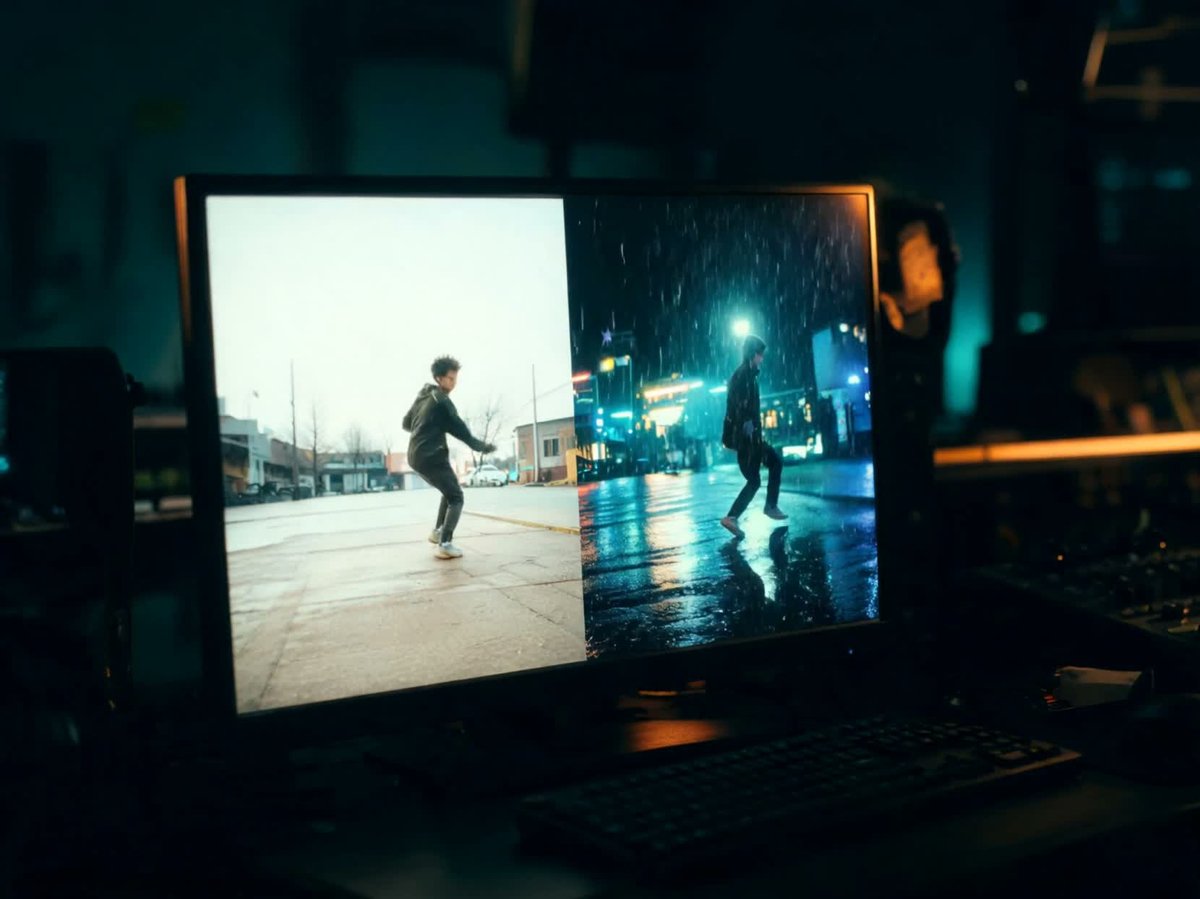
📦 Where PixVerse V6 Performs Best
Most AI video models ask you to describe a shot from nothing. PixVerse V6 earns its place when the shot already exists:
Keep the performance, change the world.
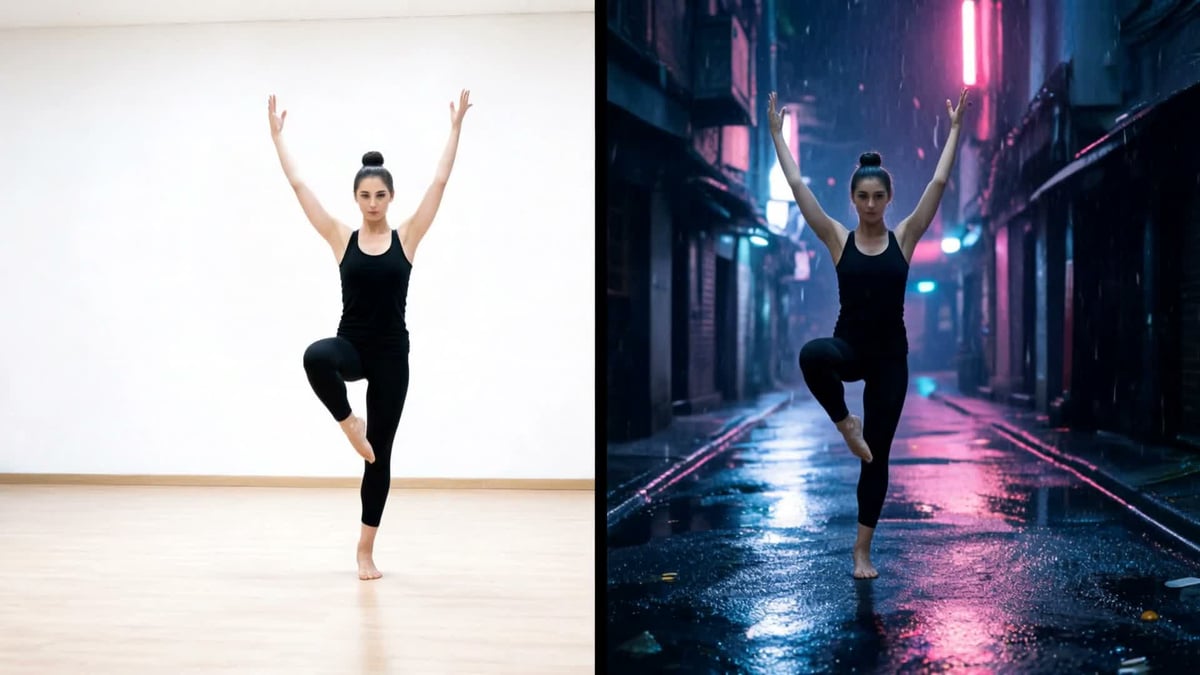
Customized video starts from footage you already like. Describe a new setting or grade, and PixVerse V6 applies it across the whole clip — the edit you built stays intact. A dancer filmed in a bare rehearsal studio can land in a rain-soaked, neon-lit alley with the same pose and the same timing. That makes it a practical tool for look development, alternate versions of an approved take, and pitches where a client wants to see the same shot in a different world.
Finish it for the channel.
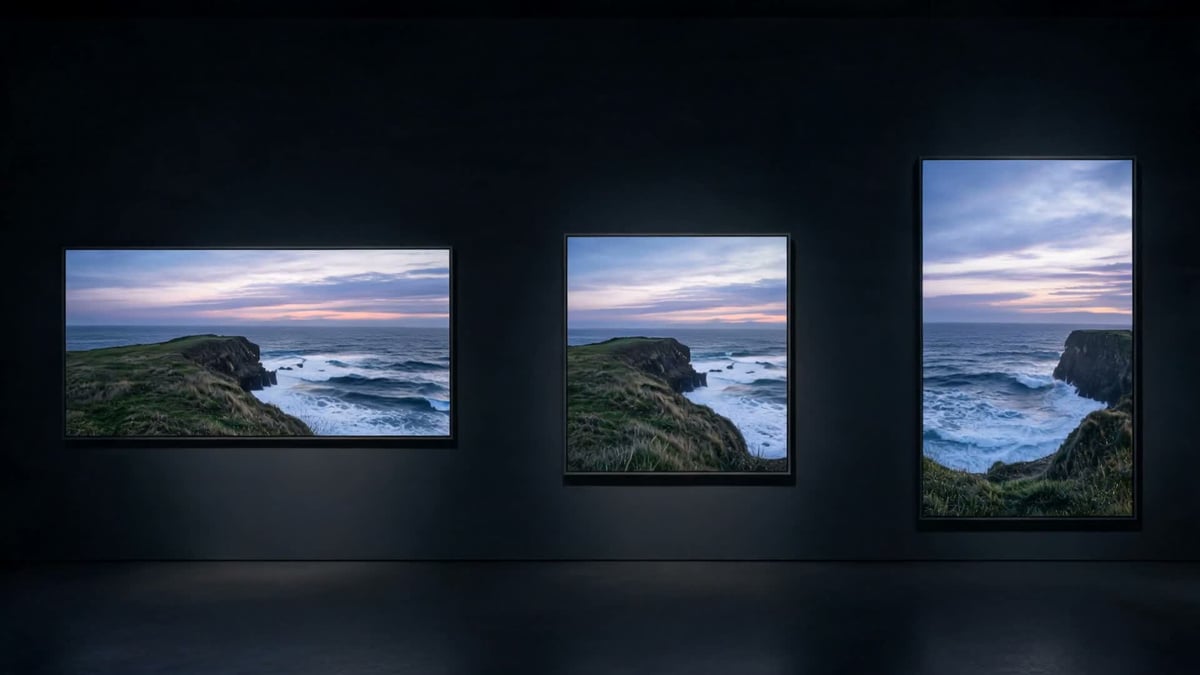
Compare looks at 360p or 540p, then render at 720p or 1080p once the direction is locked. Your source clip sets the frame — wide, square, or vertical — while you choose how sharp the delivery should be. Lighter previews keep the exploration quick; the sharper pass is there when the shot is ready to go out.
✍️ How to Write Restyle Prompts That Hold the Performance
A restyle prompt does a different job from a text-to-video prompt. The motion is already in your footage, so the prompt only has to describe the new world. When you write it, cover:
- What changes — location, light, wardrobe, or camera energy. Name each one the way you'd brief an art department
- What stays — say that the performance should remain recognizable, so the model treats the action as the anchor
- The grade — describe color and mood the way you'd brief a colorist: night exterior, wet pavement, cool blue with neon accents
- One direction per pass — if the world drifts from what you intended, tighten the prompt and render again at a lighter resolution before committing to 1080p
Prepare your source clip before you upload: about 4–14 seconds long, encoded as H.264, between 320 and 1920 pixels on each side, and no larger than 100 MB.
▶️ The Three-Step Workflow in Studio AI
Getting from an approved take to a restyled cut is a short process:
- Tell your vision — open customized video with PixVerse V6 selected, upload a clip about 4–14 seconds long, and describe what should change
- Choose your settings — pick 360p, 540p, 720p, or 1080p; the source clip sets the length and the frame
- Download or iterate — compare the render with your original cut, tighten the prompt if the world drifted, then download when the shot is ready
A short source clip and a plain-language prompt are enough to start — no editing experience required.
On a subscription? You've got 1,000 AI coins every month to try it with.
✅ Is PixVerse V6 Right for Your Project?
PixVerse V6 is the model you reach for when the performance is approved and the look is still open. It's a good fit if you're working on:
- An approved take that needs a different setting, grade, or mood
- Look tests you want to compare before committing to a direction
- Alternate versions of the same shot for different campaigns or channels
- A restyle you want to try yourself, without compositing or grading experience
In customized video, your source clip sets the timing and the frame — you choose the resolution, not the duration or aspect ratio. Where Studio AI's reference-to-video workflow lists PixVerse V6, you can also pick 5, 10, or 15 seconds, aspect ratios including 1:1, 9:16, 16:9, and 21:9, and up to ten reference images. Audio is optional, and available when the audio control is shown for the workflow you're in.
Commercial use of generated media depends on your MotionElements plan and the terms that apply to AI generations in Studio AI. Review your account license before delivering generated assets to clients.
[Explore PixVerse V6 on MotionElements Studio AI]
※ PixVerse V6 is available now through the customized video workflow in Studio AI. Select the model, upload a short clip, describe the look you want, and download the restyled cut.