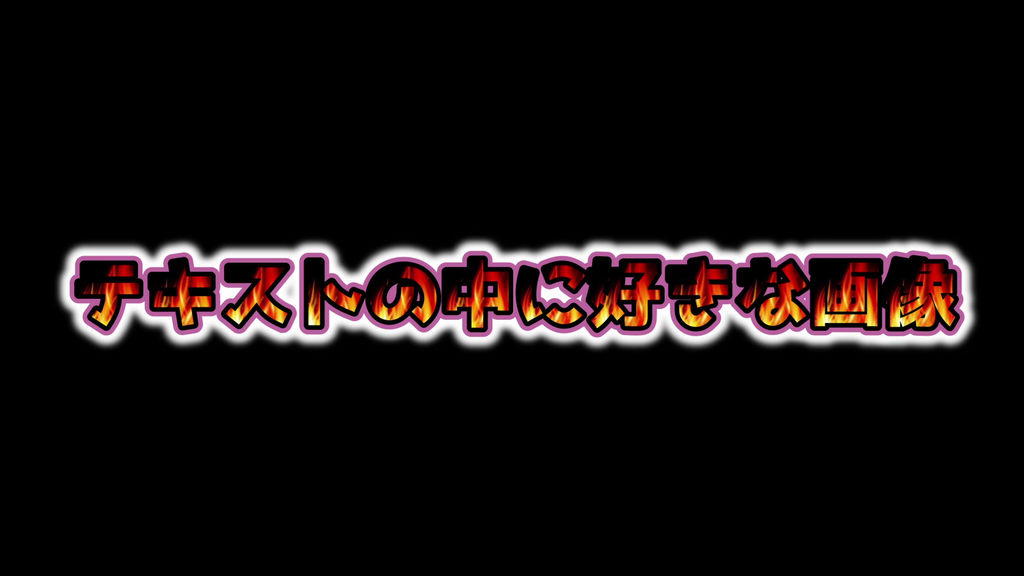
Favorite image in text
da011-1.setting
Animate with your favorite image in the text
You can easily load your favorite images
The text corresponds to the quadruple border often seen on YouTube. Gradation is also possible
--Items that can be adjusted
a: text wording
b: font
c: text size
d: text color
e: text character spacing line spacing
f: color of text outer frame, gradation color and gradation direction of frame 1, border color and thickness of frame 2-3, shadow color and offset of frame 4, valid/invalid of each
g: image in text, adjust image angle and size
--note:
Prepare a folder for the image you want to put in the text, and load it with only one image in it.
This is because only the first image is read in a folder with multiple images due to the mechanism of Da Vinci
--Common features (a-design products)
-You can use it just by placing it on the timeline, just like preset effects and captions
-You can freely place as many as you like on the timeline of Da Vinci Resolve. Various expressions are possible, such as shifting the timing and using multiple
-It remains in place even after the text animation is over, so you can use it for any number of seconds. In the case of the lower third, it automatically responds to stretching, so it naturally leads to the ending animation
-You can easily use the downloaded "setting file" in the same way as preset effects and telops by simply putting it in the designated local folder.
-You can freely adjust the font, size, color, etc. as well as the content of the text wording, so anyone can easily use it in a variety of ways without complicated programming knowledge.
- Can be used as many times as you like for your favorite video files
-Compatible with quadruple borders often seen on YouTube. Gradation is also possible for characters
--How to load into Da Vinci Resolve
1 Copy the downloaded ".setting" file to the following location.
-Windows
[Local Drive][Users][Your Username][Library][Application Support][Blackmagic Design][DaVinci Resolve][Fusion][Templates][Edit][Titles]
or
[Local Drive][User][Your Username][ProgramData][Blackmagic Design][DaVinci Resolve][Fusion][Templates][Edit][Titles]
-Mac
[Local Drive][Users][Your Username][AppData][Roaming][Blackmagic Design][DaVinci Resolve][Support][Fusion][Templates][Edit][Titles]
* Da Vinci Resolve files are located in a very deep location, and "title" animations and telop materials are stored in this location.
2 Click the tab "Effect" on the upper left of the main menu Edit at the bottom of Da Vinci Resolve. There is a ".setting" file with the name registered above in [Toolbox] [Title] on the left side of the screen. You can drag this onto the timeline and use it like a normal effect.
--Troubleshooting FAQ
Q: I can't find the folder to copy the downloaded ".setting" file / I can't find the folder under Templates
A1: Please try the following methods
Launch Da Vinci Resolve Select the lower main menu Fusion and open the Effects window in the upper left.
If you right-click [Templetes][Edit][Titles], a menu called "Show Folder" will be displayed, so you can display each folder by clicking all of them.
A2:
Please check this forum for more information
https://forum.blackmagicdesign.com/viewtopic.php?f=21&t=143716#p771680
Q: I messed with the parameters and it behaved strangely.
A: You can use it in the initial state by moving the file downloaded from [Toolbox] [Title] again to the timeline
--
This is the page of a-design in MotionElements. Downloadable motion graphics
<a href="https://www.motionelements.com/en/artists/a-design">motionelements: a-design page</a>
a-design provides materials such as telops that anyone can use and customize and arrange freely.
<a href="https://a-design.net/">a-design: official page</a>
- Kode
- 24849547
- Type
- DaVinci Resolve macro
- Required software
- DaVinci Resolve
- Filstørrelse
- 7.3 kB
- Licens
- Licensfri