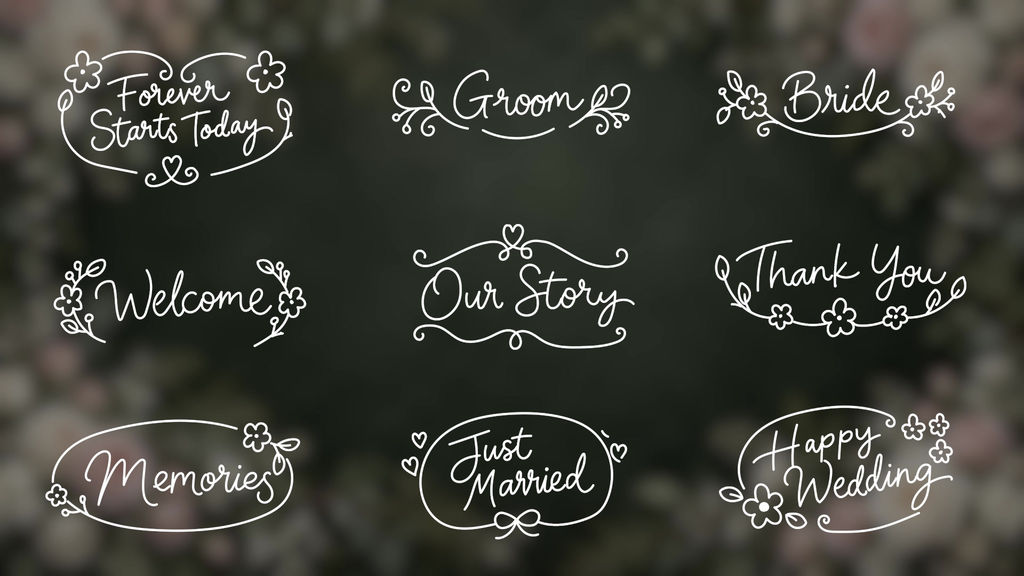
■ Adjusting the Appearance
Select the asset clip on the timeline and adjust it in the [Properties] panel.
In earlier versions, adjust it in the [Edit] tab of the [Essential Graphics] panel.
position: Position of the design
size: Size of the design
rotate: Rotation of the design
color: Color of the design
shadow_color: Color of the shadow
shadow_opacity: Opacity of the shadow (0–100)
The shadow opacity is set to 0 by default. To display the shadow, increase shadow_opacity.
Changing only shadow_color will not make the shadow visible if the opacity remains at 0.
The text is a fixed design. There are no settings for changing the wording or font.
■ Adjusting the Duration
Drag the edge of the clip on the timeline to match the length you need.
This asset has time-protected regions (Responsive Design – Time).
This setting lets you adjust how long the middle section is displayed while keeping the intro and outro animations intact.
If the clip is made too short, the adjustable range is limited, so please play back the entire clip to check it after making changes.
■ File Names and Designs
Use the files with ".mogrt" added to the names below.
01_forever starts today Forever Starts Today
02_groom Groom
03_bri
- Code
- 56363375
- Type
- Motion Graphics template
- Required software
- Premiere Pro & above
- Duration
- 00:05
- Dimensions
- 1920px x 1080px
- File size
- 1.7 MB
- License
- Royalty-Free